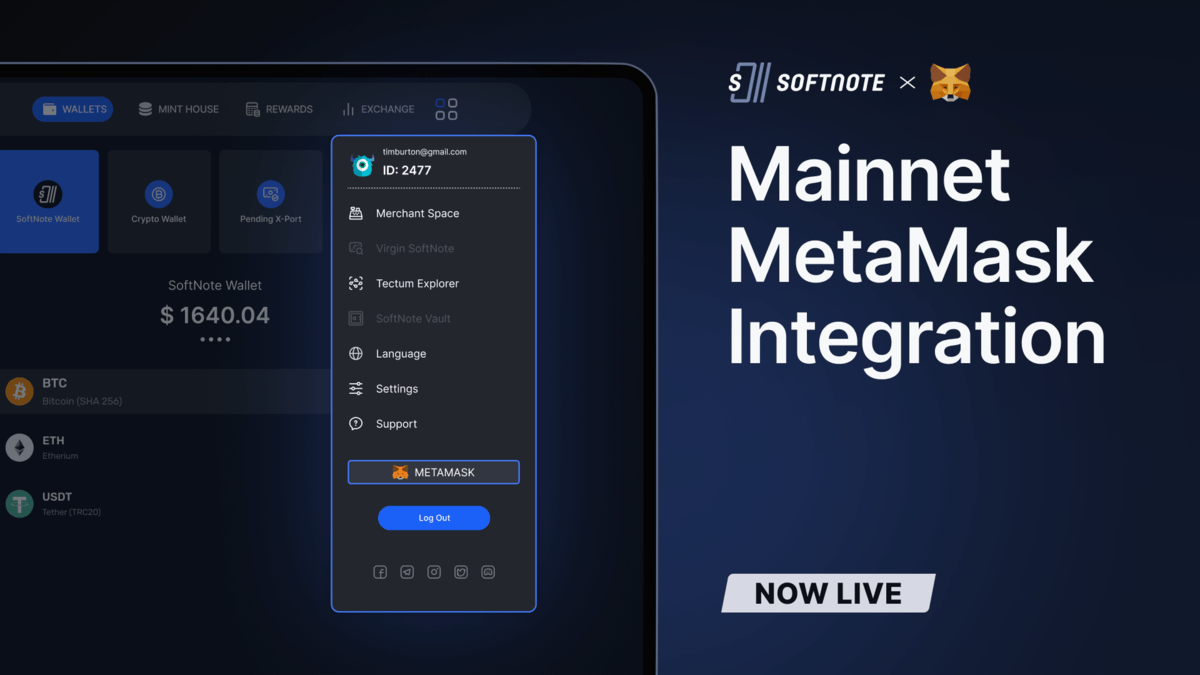
Tectum is proud to announce that users can now integrate Tectum Blockchain into their Metamask Wallet. For individuals who have been following our Developers Corner series, we shared updates
Tectum is proud to announce that users can now integrate Tectum Blockchain into their Metamask Wallet. For individuals who have been following our Developers Corner series, we shared updates on the different stages of progress. After testing the protocol, we are proud to inform users that it is now ready for application.
In this article, we will guide individuals with a Metamask account on how they can integrate our network into their wallets. This will enable them to transfer Bitcoin, Ethereum, USD Tether, and several other tokens on the fastest blockchain in the world without paying gas fees. In addition, merchants will only pay a meager 1% commission on the payments that they receive.
If you have a Metamask account, kindly follow these steps:
Launch your web browser and input the SoftNote URL

Login to your SoftNote Wallet

Input the correct login details to gain access

Click on Login to Proceed
Enter the Code Sent to Your Email and Click on "Next"
After gaining access to your wallet, click on the four squares in the top-right corner of your wallet

Go to your wallet settings

Click on Privacy and Security

Click on Private Key and the System Will Request Your Password

Enter Your Password to Proceed

Copy Your Private Key

Login to your Metamask Wallet

Click on the Account Option at the Top of the Wallet to Expand it

Click on Import Account

Past the Private Keys Copied from Your SoftNote Wallet

Click on Import

Return to Your SoftNote Wallet
Click on the Four Squares at the Top of Your Screen
Scroll Down and Click on Metamask

Connect to Metamask Via a Pop-Up

Connect to the Tectum Network

Approve the Connection

Switch to the Tectum Network


Congratulations, you can now send Bitcoin, Ethereum, and Other Cryptocurrencies for Free

Users can add as many tokens as possible to the new account.